What are Stop Words?
Stop words are words or phrases that you explicitly want the AI to avoid using in any generated or transformed content. Unlike brand voice (which guides the AI’s tone and style), stop words act as a filter to prevent specific terms from appearing in outputs.
When stop words are configured, the AI receives a clear instruction: “Do NOT use any of these words or phrases in your response.” This instruction is applied to:
- Text transformations in the Block Editor (Rewrite, Expand, Condense, Summarise, Professional, Personal)
- Title generation in the document panel
- Excerpt generation in the document panel
- Text transformations in ACF fields
- Text transformations in WooCommerce product descriptions
Accessing Stop Words Settings
Stop words are configured in the Cortex AI Main Page:
- Navigate to the Main Page – Go to Cortex AI → Main Page in your WordPress admin menu
- Find the “Global” section – The stop words settings appear in the same section as brand voice
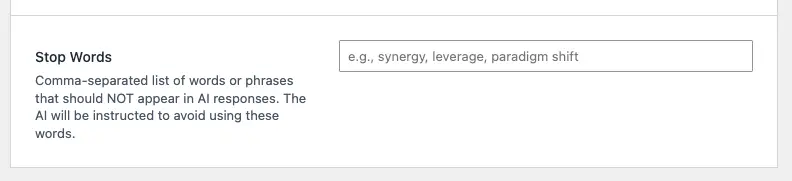
- Locate the Stop Words field – You’ll see a text field labeled “Stop Words” with a description below it
The field includes:
- Label: “Stop Words”
- Description: Explains that this is a comma-separated list of words or phrases that should NOT appear in AI responses
- Placeholder text: Provides an example format (e.g., “synergy, leverage, paradigm shift”)
- Text input: Single-line text field for entering your stop words
Adding Stop Words
Basic Setup
- Click in the Stop Words field – The text field is ready for input
- Enter your stop words – Type words or phrases separated by commas
- Save your settings – Click the “Save Settings” button at the bottom of the page
- Verify the save – A success message appears confirming your settings were saved
Format
Stop words should be entered as a comma-separated list. You can include:
- Single words:
synergy, leverage, utilize - Phrases:
paradigm shift, think outside the box, game changer - Combinations: Mix single words and phrases:
synergy, leverage, paradigm shift, utilize
Important formatting notes:
- Separate each word or phrase with a comma
- Spaces around commas are optional (both
word1,word2andword1, word2work) - Phrases with multiple words are supported
- Case-insensitive matching (the AI will avoid “Synergy” even if you enter “synergy”)
Example Stop Word Lists
Avoiding Business Jargon:
synergy, leverage, paradigm shift, think outside the box, game changer, disrupt, innovative solution, cutting-edge, best-in-class
Preventing Overused Marketing Terms:
revolutionary, groundbreaking, world-class, state-of-the-art, unparalleled, unmatched, ultimate, perfect
Avoiding Technical Jargon:
utilize, facilitate, implement, optimize, leverage, streamline, enhance, maximize
Industry-Specific Terms to Avoid:
buzzword, jargon term, industry cliché, overused phrase
Preventing Specific Words:
guarantee, promise, always, never, perfect, best, worst
How Stop Words Work
Stop words are automatically applied to all AI text generation and transformation features. Here’s how they work:
Integration with Prompts
When you use any AI feature, the stop words instruction is automatically added to the AI prompt:
IMPORTANT: Do NOT use any of these words or phrases in your response: {your stop words}
This instruction is combined with:
- Your brand voice settings (if configured)
- Custom title/excerpt instructions (if configured)
- Context awareness (if enabled)
- The specific action being performed (Rewrite, Expand, etc.)
Application Across Features
Stop words are applied consistently across all text features:
Block Editor:
- All text transformation actions (Rewrite, Expand, Condense, Summarise, Professional, Personal)
- Works with or without context awareness enabled
Title Generation:
- Applied when generating titles in the document panel
- Combined with custom title instructions if configured
Excerpt Generation:
- Applied when generating excerpts in the document panel
- Combined with custom excerpt instructions if configured
ACF Fields:
- Applied to all text transformations in ACF text, textarea, and WYSIWYG fields
- Works with or without context awareness enabled
WooCommerce:
- Applied to all text transformations in product descriptions
- Works with or without context awareness enabled
How the AI Interprets Stop Words
The AI receives stop words as a clear instruction to avoid using those terms. The AI will:
- Actively avoid using any words or phrases in your stop words list
- Find alternatives when a stop word would naturally fit
- Maintain meaning while avoiding the specified terms
- Apply the restriction to all variations and forms of the words
Note: The AI is generally effective at avoiding stop words, but it’s not perfect. Very common words or phrases that are essential to meaning may occasionally appear, especially if avoiding them would significantly change the content’s meaning.
Best Practices
Choosing Effective Stop Words
Focus on specific terms:
- Include words that are genuinely problematic for your brand
- Avoid adding too many words (this can limit the AI’s flexibility)
- Prioritize terms that appear frequently in unwanted outputs
Consider context:
- Some words might be appropriate in certain contexts but not others
- If a word is essential to your content, don’t add it to stop words
- Test your stop words list to ensure it doesn’t overly restrict the AI
Update regularly:
- Review your stop words list periodically
- Remove words that are no longer problematic
- Add new words as you identify unwanted terms in AI outputs
Common Use Cases
Eliminating Industry Jargon: If your brand focuses on clear, accessible communication, add common industry jargon to your stop words list. This helps ensure your content is understandable to a broader audience.
Preventing Overused Marketing Terms: Many brands want to avoid clichéd marketing language. Adding terms like “revolutionary,” “groundbreaking,” or “world-class” to stop words helps create more authentic content.
Maintaining Brand Consistency: If your brand has specific terminology preferences (e.g., “use” instead of “utilize”), add the unwanted terms to your stop words list.
Avoiding Sensitive Terms: Some brands need to avoid specific words for legal, compliance, or brand safety reasons. Stop words provide a way to enforce these restrictions automatically.
Improving Content Quality: By preventing overused or weak terms, stop words can help the AI generate more varied and engaging content.
Balancing Stop Words with Brand Voice
Stop words and brand voice work together:
- Brand voice guides the AI’s tone and style (what to do)
- Stop words prevent specific terms (what not to do)
They complement each other:
- Brand voice: “Use clear, simple language”
- Stop words: “synergy, leverage, utilize”
This combination ensures the AI uses appropriate language while avoiding specific unwanted terms.
Tip: If your brand voice already discourages certain types of language, you may not need to add those terms to stop words. However, stop words provide a more explicit restriction if you want to be certain those terms never appear.
Managing Your Stop Word List
Adding New Stop Words
- Navigate to Main Page – Go to Cortex AI → Main Page
- Find the Stop Words field – Located in the “Global” section
- Edit the field – Add new words or phrases, separated by commas
- Save settings – Click “Save Settings” at the bottom
Example: If your current list is synergy, leverage and you want to add utilize, change it to: synergy, leverage, utilize
Removing Stop Words
- Navigate to Main Page – Go to Cortex AI → Main Page
- Find the Stop Words field – Located in the “Global” section
- Edit the field – Remove the words or phrases you no longer need
- Save settings – Click “Save Settings” at the bottom
Example: If your current list is synergy, leverage, utilize and you want to remove utilize, change it to: synergy, leverage
Clearing All Stop Words
To remove all stop words:
- Navigate to Main Page – Go to Cortex AI → Main Page
- Find the Stop Words field – Located in the “Global” section
- Clear the field – Delete all content from the field
- Save settings – Click “Save Settings” at the bottom
An empty stop words field means no restrictions are applied.
Organizing Your List
For better readability and management:
- Group related terms – Keep similar words together (e.g., all business jargon together)
- Use consistent formatting – Choose a style (with or without spaces after commas) and stick with it
- Add comments in your notes – While the field doesn’t support comments, you can maintain a separate document explaining why certain words are included
Example organized list:
synergy, leverage, utilize, paradigm shift, think outside the box, game changer, disrupt, innovative solution, cutting-edge, best-in-class
Troubleshooting
Stop Words Not Being Applied
If you notice stop words appearing in AI-generated content:
- Verify settings are saved – Make sure you clicked “Save Settings” after entering your stop words
- Check the format – Ensure words are separated by commas
- Test with a simple example – Try a text transformation with a very obvious stop word to verify it’s working
- Review the word – Some words might be essential to the content’s meaning, and the AI may prioritize meaning over the stop word restriction
Stop Words Too Restrictive
If the AI seems overly constrained or produces awkward phrasing:
- Review your list – You may have too many stop words or words that are too common
- Remove unnecessary words – Eliminate words that aren’t actually problematic
- Test individual words – Temporarily remove words one at a time to identify which ones are causing issues
- Consider alternatives – Instead of stop words, you might address some issues through brand voice instructions
Conflicting with Brand Voice
If stop words seem to conflict with your brand voice:
- Review both settings – Ensure your brand voice and stop words work together
- Adjust brand voice – Your brand voice description might be encouraging terms that are in your stop words list
- Prioritize – Decide which is more important: avoiding specific terms (stop words) or following brand voice style
Example conflict:
- Brand voice: “Use professional, technical language”
- Stop words: “utilize, facilitate, implement”
In this case, the brand voice encourages technical language, but stop words prevent common technical verbs. Consider either adjusting the brand voice or removing some stop words.
Stop Words in Titles vs. Body Text
Stop words apply to both titles and body text. However:
- Titles are shorter – The AI has less flexibility to work around stop words in titles
- Some words may be essential – If a stop word is crucial to a title’s meaning, the AI may still use it
- Test both – Generate both titles and body text to see how stop words affect each
Examples
Example 1: Business Blog
Goal: Create professional content without business jargon
Stop Words:
synergy, leverage, utilize, paradigm shift, think outside the box, game changer, disrupt, innovative solution
Result: AI-generated content avoids these overused business terms while maintaining a professional tone.
Example 2: E-commerce Product Descriptions
Goal: Avoid marketing clichés and be more authentic
Stop Words:
revolutionary, groundbreaking, world-class, state-of-the-art, unparalleled, unmatched, ultimate, perfect, best, guaranteed
Result: Product descriptions use more authentic, specific language rather than generic marketing claims.
Example 3: Technical Documentation
Goal: Use simple, clear language instead of unnecessarily complex terms
Stop Words:
utilize, facilitate, implement, optimize, leverage, streamline, enhance, maximize, utilize
Result: Documentation uses simpler alternatives (use instead of utilize, help instead of facilitate, etc.).
Example 4: Educational Content
Goal: Avoid jargon and overly academic language
Stop Words:
paradigm, methodology, framework, utilize, facilitate, implement, optimize
Result: Educational content uses accessible language that’s easier for learners to understand.
Next Steps
Now that you’ve configured stop words:
- Test your settings – Try text transformations in the Block Editor to see stop words in action
- Refine your list – Add or remove words based on what you see in AI outputs
- Combine with brand voice – Ensure your Brand Voice and stop words work together effectively
- Set custom instructions – Configure Custom Title and Excerpt Instructions for more specific control
- Monitor results – Regularly review AI-generated content to identify new words that should be added to your stop words list
Stop words are a simple but effective way to maintain control over the language used in AI-generated content. Start with a small list of genuinely problematic terms, and expand it based on your needs and results.