Enabling Auto Alt Text on Upload
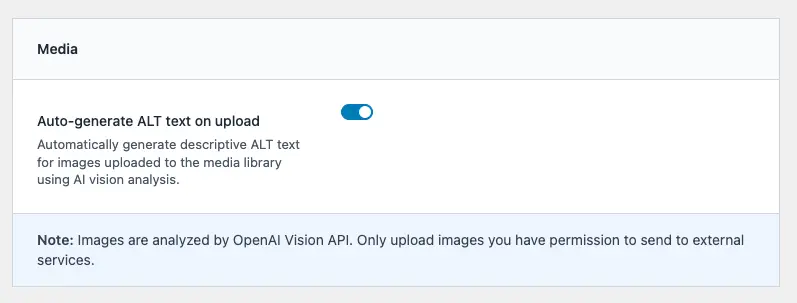
Automatic alt text generation is controlled by a toggle in the plugin settings.
Accessing the Setting
- Go to Cortex AI in your WordPress admin menu.
- Scroll to the Media section.
- Find the toggle labeled “Auto-generate ALT text on upload”.
- Enable the toggle to activate automatic generation.
Prerequisites
Before enabling this feature, ensure:
- Text provider is configured – You must have an OpenAI API key set up in Cortex AI → Settings → Text. Image analysis currently requires OpenAI’s Vision API.
- Manage options capability – You need administrator-level permissions to access plugin settings.
If the Media section doesn’t appear or the toggle is missing, check that your text provider (OpenAI) is properly configured with a valid API key.
How Automatic Generation Works
When automatic alt text is enabled, the plugin processes images in the background after upload.
The Process
- Image Upload – You upload an image to the Media Library through any normal WordPress flow (Media Library, block editor, etc.).
- Automatic Detection – The plugin detects the new image attachment.
- Validation – The system checks:
- The file is an image (image/* MIME type)
- The image doesn’t already have alt text
- The file size is within limits (15MB maximum)
- The text provider (OpenAI) is configured
- Scheduled Processing – The image is scheduled for alt text generation with a 4-second delay to avoid interfering with the upload process.
- AI Analysis – The image is sent to OpenAI’s Vision API for analysis.
- Alt Text Creation – The AI generates a descriptive alt text based on what it sees in the image.
- Storage – The generated alt text is saved to the image’s alt text field in WordPress.
When Alt Text is Generated
- New uploads – Images uploaded without existing alt text are automatically processed.
- Image replacements – If you replace an image file (via “Replace Media”), the plugin will regenerate alt text for the new file, even if the old one had alt text.
When Alt Text is NOT Generated
- Existing alt text – If an image already has alt text, it won’t be overwritten (unless you replace the image file).
- Non-image files – Only image files (JPEG, PNG, WebP, GIF, etc.) are processed.
- File size too large – Images larger than 15MB are skipped.
- Provider not configured – If OpenAI text provider isn’t set up, generation won’t occur.
- Feature disabled – If the toggle is off, no automatic generation happens.
File Size Limitations
The automatic alt text feature has a 15MB file size limit per image. This limit ensures:
- API compatibility – OpenAI’s Vision API has size restrictions.
- Performance – Large files take longer to process and can slow down your site.
- Resource usage – Smaller files use less server memory and bandwidth.
If an image exceeds 15MB, it will be skipped during automatic generation. You can still manually add alt text to these images in the Media Library.
Checking File Size
To check an image’s file size:
- Go to Media → Library.
- Click on the image.
- Check the “File size” field in the attachment details.
Processing Details
Background Processing
Alt text generation happens in the background using WordPress Cron, so it doesn’t block your upload process. The 4-second delay ensures the upload completes before analysis begins.
Rate Limiting
The plugin uses intelligent rate limiting to prevent overwhelming the API:
- Maximum 5 concurrent requests – Only 5 images are analyzed simultaneously.
- Automatic queuing – Additional images are queued and processed as capacity becomes available.
- Queue processing – Queued images are automatically processed when slots open up.
This ensures reliable performance even when uploading multiple images at once.
Error Handling
If alt text generation fails for an image, you’ll see an admin notice listing the failed files. Common reasons for failure include:
- API errors – Network issues or API service problems.
- Invalid file – Corrupted or unsupported image format.
- File not found – Image was deleted before processing completed.
- API key issues – Invalid or expired OpenAI API key.
Failed images won’t block future uploads. You can manually add alt text to failed images or retry by replacing the image file.
Alt Text Quality
The AI generates concise, descriptive alt text that:
- Describes the image content – What’s visible in the image (objects, people, scenes, etc.).
- Is accessible – Suitable for screen readers and accessibility tools.
- Is SEO-friendly – Descriptive text that helps search engines understand the image.
- Is truncated if needed – Alt text longer than 125 characters is automatically truncated to ensure compatibility.
Editing Generated Alt Text
You can always edit or replace auto-generated alt text:
- Go to Media → Library.
- Click on the image.
- Edit the “Alt text” field in the attachment details.
- Click Update.
The plugin won’t overwrite manually edited alt text unless you replace the image file.
Privacy and Data Considerations
Important: When automatic alt text is enabled, image files are sent to OpenAI’s Vision API for analysis. This means:
- External processing – Images leave your server and are processed by OpenAI.
- API terms – Your use is subject to OpenAI’s terms of service and privacy policy.
- Permissions – Only enable this feature for images you have permission to send to external services.
The plugin shows a notice in the Media section reminding you of this. Consider your privacy requirements and any applicable regulations (e.g., GDPR, HIPAA) before enabling automatic alt text generation.
Best Practices
- Configure OpenAI first – Set up your OpenAI API key in Cortex AI → Settings → Text before enabling the feature.
- Review generated alt text – Check auto-generated alt text for accuracy and edit when needed.
- Use for appropriate images – Enable automatic generation for images where external processing is acceptable.
- Monitor file sizes – Keep images under 15MB for automatic processing, or add alt text manually for larger files.
- Combine with batch processing – Use Batch Alt Text Generation to process existing images without alt text.
Troubleshooting
Alt Text Not Generating
- Check the toggle – Ensure “Auto-generate ALT text on upload” is enabled in Cortex AI → Main → Media.
- Verify OpenAI setup – Confirm OpenAI API key is configured in Cortex AI → Settings → Text.
- Check file size – Images over 15MB are skipped.
- Review admin notices – Check for error messages about failed generations.
- Wait a few seconds – Processing happens in the background with a 4-second delay.
Feature Not Available
- Media section missing – Ensure OpenAI text provider is configured; the section only appears when a text provider is set up.
- Toggle not visible – Check that you have administrator permissions and the plugin is active.
API Errors
- Invalid API key – Verify your OpenAI API key is correct and has sufficient credits.
- Rate limits – OpenAI may throttle requests; the plugin queues images automatically.
- Network issues – Ensure your server can reach OpenAI’s API (check firewall settings).
Alt Text Quality Issues
- Edit manually – Review and edit generated alt text for accuracy.
- Replace image – Replacing the image file will trigger regeneration with the new file.
- Check image clarity – Very blurry or low-quality images may produce less accurate descriptions.
Next Steps
- Batch processing – Learn how to generate alt text for existing images in Batch Alt Text Generation.
- Manual alt text – Edit alt text directly in the Media Library for fine-tuned control.
- Provider setup – See Initial Setup and Configuration for detailed API key configuration.
Automatic alt text generation streamlines accessibility and SEO for your images, ensuring every uploaded image gets a descriptive alt text without manual work.