Overview
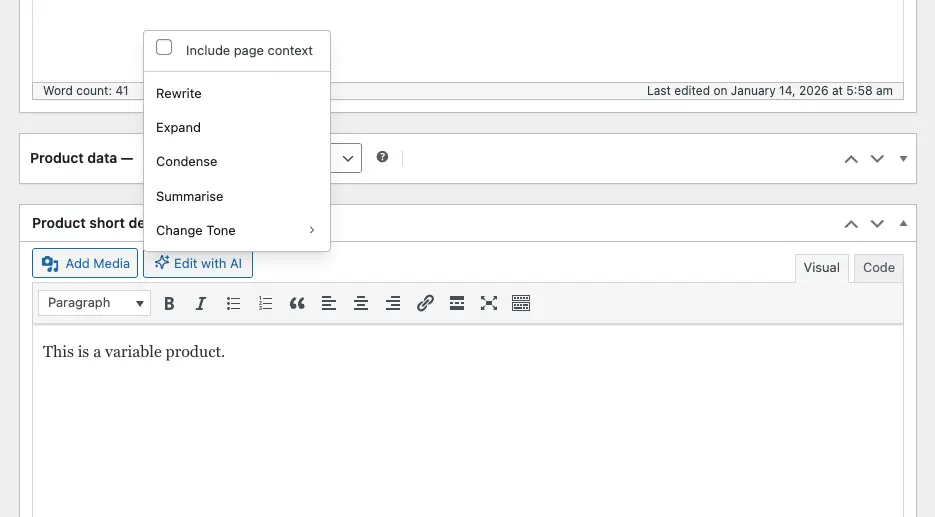
The Cortex plugin adds AI capabilities to WooCommerce product fields:
- Product Description: The main product description field (WYSIWYG editor)
- Short Description: The product short description/excerpt field (WYSIWYG editor)
All six text transformation actions are available in WooCommerce, just like in the Block Editor and ACF fields. The integration works on:
- Product edit screens
- Both classic and block-based product editors
Prerequisites
Before using AI features in WooCommerce:
- WooCommerce must be active – The plugin automatically detects if WooCommerce is installed and activated
- API keys configured – At least one AI provider (OpenAI, Gemini, or Stability AI) must be configured in the plugin settings
- Product edit screen – AI features only appear when editing products, not other post types
Accessing AI Controls
AI controls appear automatically in WooCommerce product description fields when you’re editing a product. The location of the Edit with AI button depends on your WooCommerce setup:
Product Description Field
- Look for the “Edit with AI” button – A button with text and icon appears in the media buttons area (above the editor toolbar) or before the editor
- Click the button – This opens the AI action menu
- Select an action – Choose from Rewrite, Expand, Condense, Summarise, or Change Tone
The button placement depends on your WooCommerce configuration. It may appear:
- In the media buttons row (alongside “Add Media” and other media buttons)
- Above the editor toolbar in a dedicated wrapper
Short Description Field
- Find the “Edit with AI” button – Located in the same position as the main description field
- Click the button – Opens the AI action menu
- Choose your action – All six actions are available
Both fields use the same WYSIWYG editor (TinyMCE), so the Edit with AI button appears in the same location for consistency.
Available Text Actions
All six text transformation actions are available in WooCommerce product fields, identical to the Block Editor and ACF:
Rewrite
Best for: Improving clarity, fixing grammar, or refining existing product descriptions
Rewrites your product description while maintaining its core meaning. Works especially well for:
- Product descriptions that need polishing
- Converting technical specifications into customer-friendly language
- Improving readability and flow
- Fixing grammar and spelling issues
Expand
Best for: Adding detail to brief product descriptions
Takes short product descriptions and expands them with relevant details. Useful for:
- Brief product descriptions that need more detail
- Adding product features and benefits
- Creating comprehensive descriptions from bullet points
- Expanding short descriptions into full descriptions
Condense
Best for: Making long product descriptions more concise
Shortens product descriptions while preserving key information. Ideal for:
- Long descriptions that need to fit character limits
- Creating shorter versions for product cards or listings
- Condensing verbose descriptions
- Extracting key points from detailed descriptions
Summarise
Best for: Creating brief overviews from detailed product descriptions
Distills product descriptions to essential elements. Perfect for:
- Creating short descriptions from full descriptions
- Generating product summaries for listings
- Extracting key selling points
- Creating meta descriptions or social media content
Change Tone
The Change Tone option opens a submenu with two choices:
Professional
- Converts casual product descriptions to formal, business-appropriate tone
- Perfect for B2B products, technical items, or professional services
- Maintains professionalism while keeping descriptions clear
Personal
- Transforms formal product descriptions into friendly, conversational tone
- Great for consumer products, lifestyle items, or engaging copy
- Makes descriptions more approachable and relatable
Using Context Awareness
Context awareness in WooCommerce works similarly to the Block Editor and ACF but with WooCommerce-specific information. When enabled, the AI receives product metadata to make more informed transformations.
Enabling Context
- Click the Edit with AI button in any product description field
- Check “Include page context” – This checkbox appears at the top of the action menu
- Select your action – Choose Rewrite, Expand, Condense, etc.
When context is enabled, the AI receives:
- Product title: The name of the product
- SKU: The product’s stock keeping unit (if set)
- Product categories: All categories assigned to the product
- Product tags: All tags assigned to the product
This comprehensive context helps the AI:
- Maintain consistency with product metadata
- Reference product categories and tags appropriately
- Generate suggestions that align with your product information
- Create descriptions that match the product’s classification
- Avoid contradictions between description and metadata
Context Details
What’s included:
- Product title (from the title field)
- SKU (if configured)
- Product categories (all assigned categories)
- Product tags (all assigned tags)
What’s excluded:
- The current field being edited (to avoid circular references)
- Other product fields (price, inventory, etc.)
- Product images or media
Limitations:
- Context extraction has a 5-second timeout
- If extraction fails, the action proceeds without context
- Context is extracted from the current page state
When to Use Context
Use context when:
- Your product description should reference categories or tags
- You want consistency between description and metadata
- The description should align with the product’s classification
- You need the AI to understand the full product context
Skip context when:
- You’re writing a standalone description
- You want a quick, isolated transformation
- Context might make suggestions too generic
- You’re editing descriptions that don’t need metadata context
The context toggle setting is saved per user in your browser (same setting as Block Editor and ACF), so your preference persists across sessions.
WooCommerce-Specific Considerations
Product Description vs. Short Description
WooCommerce has two description fields:
Product Description (Main Description):
- Full product description
- Appears on the product page
- Can be lengthy and detailed
- Best for comprehensive product information
Short Description:
- Brief product summary
- Appears in product listings, cart, and checkout
- Should be concise (typically 1-2 paragraphs)
- Best for quick product overviews
AI Tips:
- Use “Expand” on short descriptions to create full descriptions
- Use “Condense” or “Summarise” on full descriptions to create short descriptions
- Keep short descriptions focused on key selling points
- Use context to ensure both descriptions align with product metadata
SEO Considerations
Product descriptions are important for SEO. When using AI:
- Review AI suggestions for keyword placement
- Maintain natural language – AI helps with readability but verify keyword usage
- Check length – Ensure descriptions meet your SEO requirements
- Verify accuracy – Always fact-check AI-generated product information
- Update regularly – Use AI to refresh descriptions for better SEO performance
Product Variants
If you’re using WooCommerce product variants:
- AI works on the main product description
- Variant-specific descriptions may need manual editing
- Use context to ensure descriptions work for all variants
- Consider variant-specific details when reviewing AI suggestions
Multilingual Stores
For multilingual WooCommerce stores:
- AI generates content in the language of your input
- Translate product descriptions before using AI
- Use AI to improve descriptions in each language
- Context extraction works with translated categories and tags
The AI Processing Flow
The processing flow in WooCommerce is identical to ACF fields:
1. Processing State
A modal window appears showing:
- The action being performed (e.g., “Rewriting…”, “Expanding…”)
- A loading spinner
- “Processing…” message
The modal cannot be closed during processing. This typically takes 2-10 seconds depending on:
- The length of your product description
- Whether context is enabled
- Your selected AI provider
- Current API response times
2. Success State
Once processing completes, the modal shows:
- AI Suggestion: The transformed text in a scrollable preview area
- Discard button: Reject the suggestion and return to your original text
- Apply button: Accept the suggestion and replace your field content
Review the suggestion carefully:
- Read through the entire transformed text
- Check that it matches your product accurately
- Verify product details and specifications
- Ensure it fits with your product’s categories and tags
- Confirm it maintains your brand voice
3. Error State
If something goes wrong, you’ll see:
- An error message explaining what happened
- A Close button to dismiss the modal
Common errors include:
- API key issues (check your settings)
- Network connectivity problems
- Rate limiting (too many requests)
- Invalid content or context
Applying and Discarding Suggestions
Applying a Suggestion
- Review the suggestion in the modal preview
- Click “Apply” – This replaces your field content with the AI-generated text
- The modal closes automatically
- Your field is updated – You can continue editing or make further changes
After applying:
- The field value is updated immediately
- WooCommerce’s change detection is triggered
- You can edit the AI-generated text manually
- You can apply another transformation
- You can undo the change using browser undo (Ctrl+Z / Cmd+Z)
Discarding a Suggestion
- Click “Discard” – This closes the modal without making changes
- Your original text remains unchanged
- You can try again with a different action or settings
Discarding doesn’t affect your original content. You can:
- Try the same action again
- Try a different action
- Adjust context settings
- Make manual edits instead
Best Practices
Getting Better Results
- Start with accurate product information – AI works best with correct, complete input
- Use context for consistency – Enable context to align descriptions with product metadata
- Try multiple actions – If one doesn’t work, experiment with others
- Combine AI with manual editing – Use AI as a starting point, then refine manually
- Review before applying – Always check suggestions for accuracy and appropriateness
- Verify product details – Ensure AI suggestions match your actual product specifications
Common Workflows
Creating product descriptions from scratch:
- Enter key product features or bullet points
- Use “Expand” to create a full description
- Review and apply suggestions
- Use “Rewrite” to refine and polish
- Make final manual adjustments
Improving existing descriptions:
- Select your existing product description
- Use “Rewrite” with context enabled
- Review for accuracy and brand voice
- Apply and refine further if needed
Creating short descriptions from full descriptions:
- Start with your full product description
- Use “Condense” or “Summarise” to create a short version
- Review to ensure key selling points are included
- Apply to the short description field
- Adjust length as needed
Maintaining consistency across products:
- Enable context for all transformations
- Use consistent product categories and tags
- Apply similar AI actions to similar products
- Review all descriptions together for brand consistency
Tone adjustment for different markets:
- Write your content in your natural voice
- Select descriptions that need tone changes
- Use “Change Tone” → Professional for B2B products
- Use “Change Tone” → Personal for consumer products
- Review to ensure the tone matches your target market
Troubleshooting
Edit with AI button Not Appearing
- Check WooCommerce is active: Ensure WooCommerce plugin is installed and activated
- Verify you’re on product edit screen: AI features only appear when editing products
- Check API keys: Ensure at least one provider is configured in settings
- Refresh the page: Reload if you just added API keys
- Check browser console: Look for JavaScript errors that might prevent the button from loading
Poor Quality Suggestions
- Try different actions: Some actions work better for specific product types
- Enable/disable context: Context can help or hinder depending on the situation
- Check your brand voice: Ensure brand voice settings align with your goals
- Review stop words: Make sure stop words aren’t blocking important product terms
- Provide more input: AI works better with detailed starting content
Processing Takes Too Long
- Check your internet connection: Slow connections delay API responses
- Reduce context: Disable context for faster processing
- Try a different provider: Some providers may be faster than others
- Check API status: Provider APIs may be experiencing issues
Errors During Processing
- Verify API keys: Check that keys are valid and have sufficient credits
- Check network: Ensure your site can reach AI provider APIs
- Review error message: The modal will show specific error details
- Try again: Some errors are temporary and resolve on retry
Context Not Working
- Check product metadata: Ensure product has title, categories, or tags set
- Verify WooCommerce data: Context extraction requires WooCommerce editor data
- Check timeout: Context extraction has a 5-second limit
- Review console: Browser console may show context extraction warnings
Description Not Saving
- Check WooCommerce save process: Ensure you’re saving the product correctly
- Verify field permissions: Check that you have permission to edit products
- Review browser console: Look for JavaScript errors during save
- Try manual save: Save the product manually after applying AI suggestions
Next Steps
Now that you’re comfortable with AI in WooCommerce:
- Learn about ACF integration: See Using AI with ACF Fields for AI features in custom fields
- Try Block Editor: Explore AI features in Using AI in the Block Editor for paragraph blocks
- Configure brand voice: Set up your brand voice in the Main Page settings for more consistent AI outputs
- Generate product images: Use Generating AI Images to create product images with AI
WooCommerce product descriptions are crucial for conversions, and AI integration makes it easier to create compelling, accurate, and consistent product content that helps customers make informed purchasing decisions.